Docya User Guide
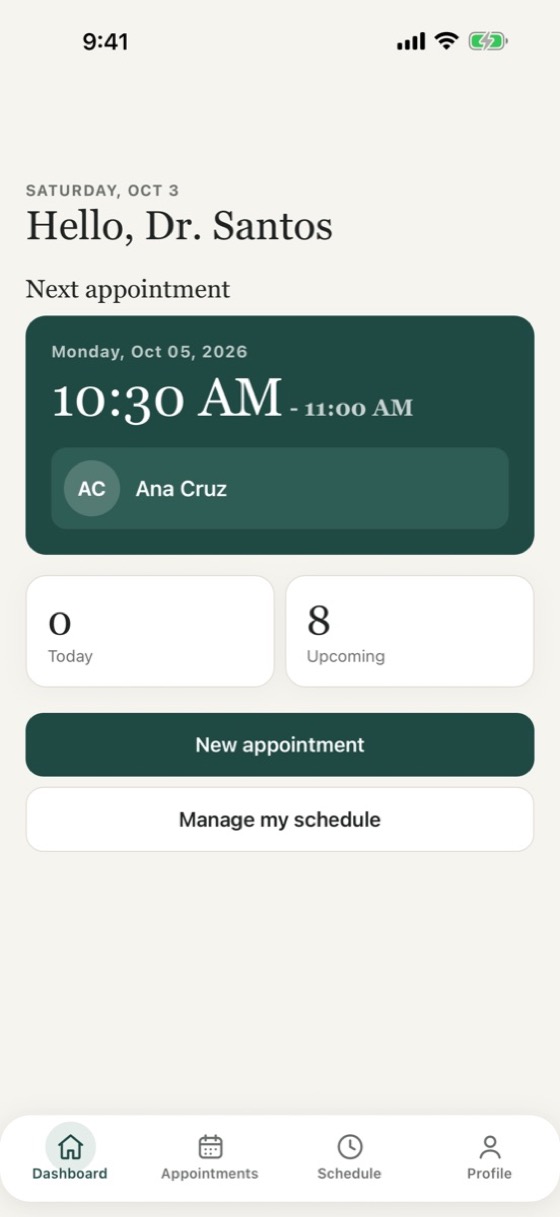
Docya is an appointment book for doctors. You book your patients; patients do not need the app or an account.
1. Create your account
Tap Create an account, enter your name, email, specialization and a password, then tap Create account. If you are asked for a code, enter the 6-digit code we emailed you.
2. Check your working hours
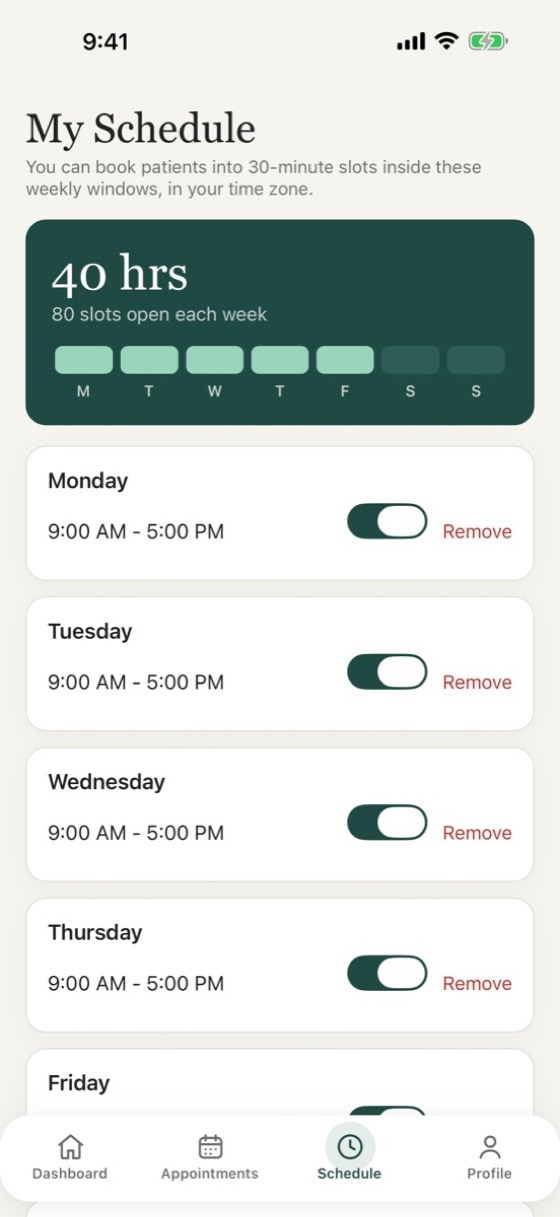
New accounts start with Monday to Friday, 9:00 AM to 5:00 PM. Open the Schedule tab to change them: pick a day, then add, edit or remove its hours. Patients can only be booked inside your working hours, in 30-minute slots.
If the new-appointment screen says you have no working hours, tap Set my working hours and add at least one day.
3. Book a patient
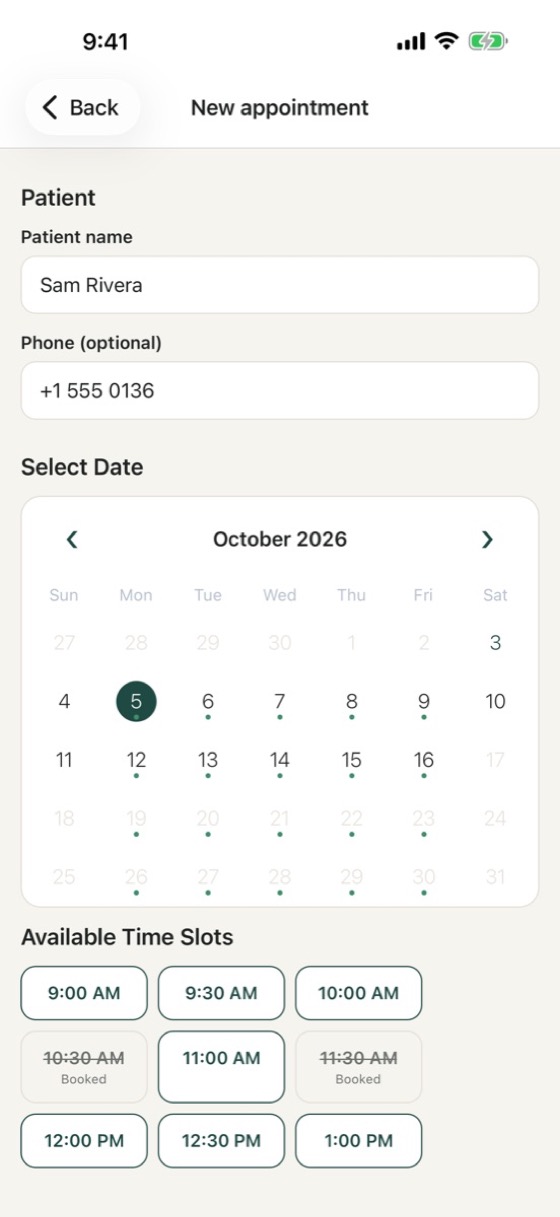
- On the Dashboard or Appointments tab, tap New appointment.
- Type the patient's name. A phone number is optional.
- Pick a date (days with open slots are marked), then tap a time slot.
- The appointment is confirmed straight away.
4. Manage appointments
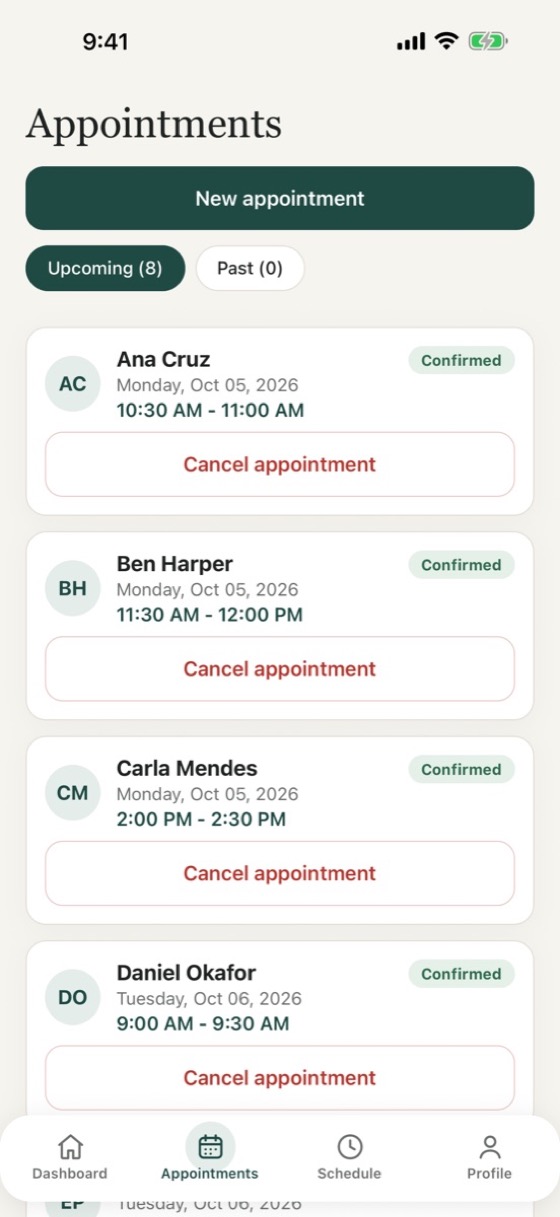
The Appointments tab lists upcoming and past visits. Tap one to see details, add private notes, mark it completed, or cancel it. A cancelled slot opens up again; a cancelled appointment cannot be brought back, so book a new one instead.
5. Reminders
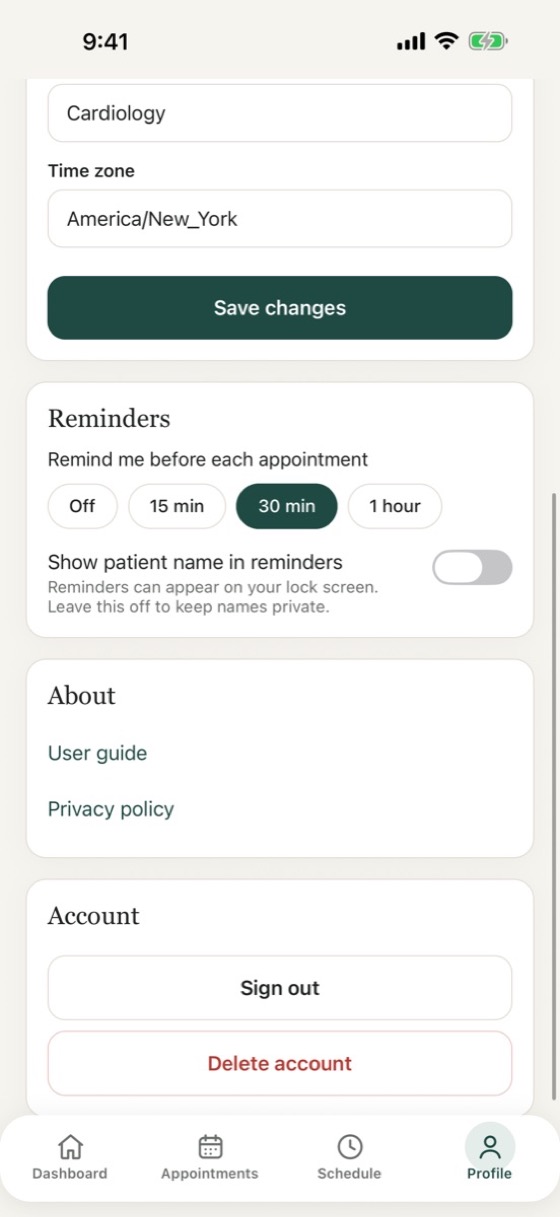
On the Profile tab, choose to be reminded 15, 30 or 60 minutes before each appointment. Allow notifications for Docya in your iPhone's Settings. Reminders are set on your phone and need no internet connection.
6. Forgot your password?
On the sign-in screen tap Forgot password?, enter your email, then enter the code we send you and choose a new password.
7. Export or delete your data
Profile > Export my data gives you a copy of your profile, working hours and appointments as text. Profile > Delete account removes your account and all your appointments permanently.
Tip: times
Times follow your phone: 12-hour (1:30 PM) or 24-hour (13:30), depending on your iPhone setting.
Need help?
See the support page or email gentlyawesome@gmail.com.